Error: Failed to get profile data
Problem Overview
You might encounter the "Failed to get profile data" error when launching profiles. This article will help you identify the cause and resolve the issue.
Common Causes
🔄 Improper Closure
Profile may have been improperly closed, leading to synchronization issues
🌐 Proxy Issues
Lost connection to proxy or depleted proxy traffic
⚠️ Agent Failure
The agent application might have stopped working
🔄 System Updates
Recent updates or third-party applications may cause conflicts
Resolution Steps
1. Check the Agent
- Installing the Agent
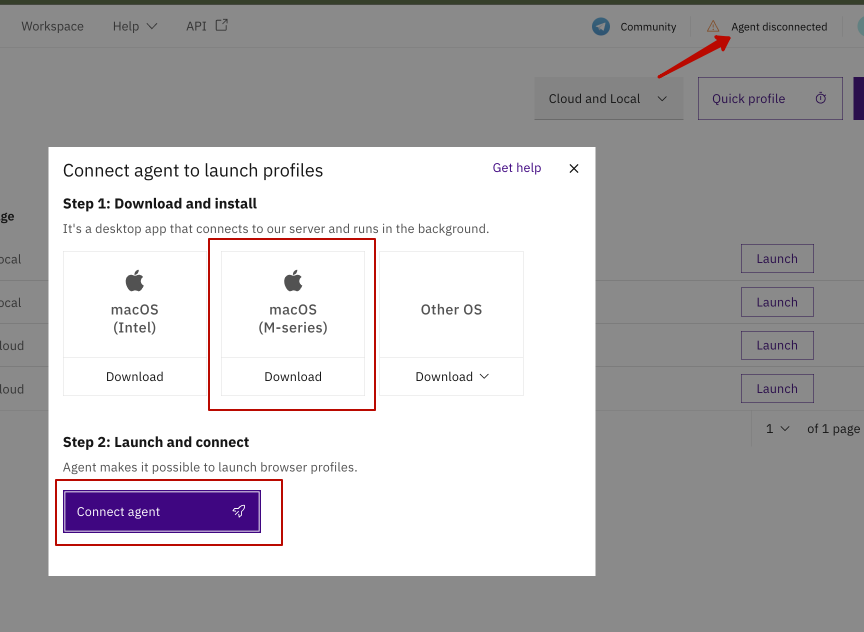
- Reconnecting the Agent
- Reinstalling the Agent
- Download the agent for your OS from the system requirements page
macOS
Ensure you have macOS 14 (Sonoma) or newer:
- M-series for M1, M2, M3 chips
- Intel for other models
-
Launch the installer:
- Windows: right-click → "Run as administrator"
- macOS/Linux: follow standard procedure
-
Follow the on-screen instructions
-
Click "Connect Agent"
- Disconnect the agent
- Reconnect the agent
- Click "Unlock profiles" if prompted
- Refresh the page
- Try launching the profile again
- Remove the current agent version
- Download the latest version
- Install the agent again
- Connect the agent
- Test profile functionality

2. Check Your Device
Application Conflicts
The following applications may cause conflicts:
- Antivirus software
- Firewalls
- VPN clients
- Proxy applications (Proxifier, SocksEscort)
Recommended Actions:
- Temporarily disable potentially conflicting applications
- Add Indigo to their whitelist
- As a last resort, remove conflicting applications
3. Additional Steps
If the issue persists:
- Restart your device
- Reconnect the agent
- Test profile functionality
tip
If nothing helps, try launching a quick profile to check if the issue is related to a specific profile or the system in general.