Quick Profiles
Quick profiles are designed for one-time tasks that don't require data saving. When you close a quick profile, it's automatically deleted along with all its data.
Creating Quick Profiles
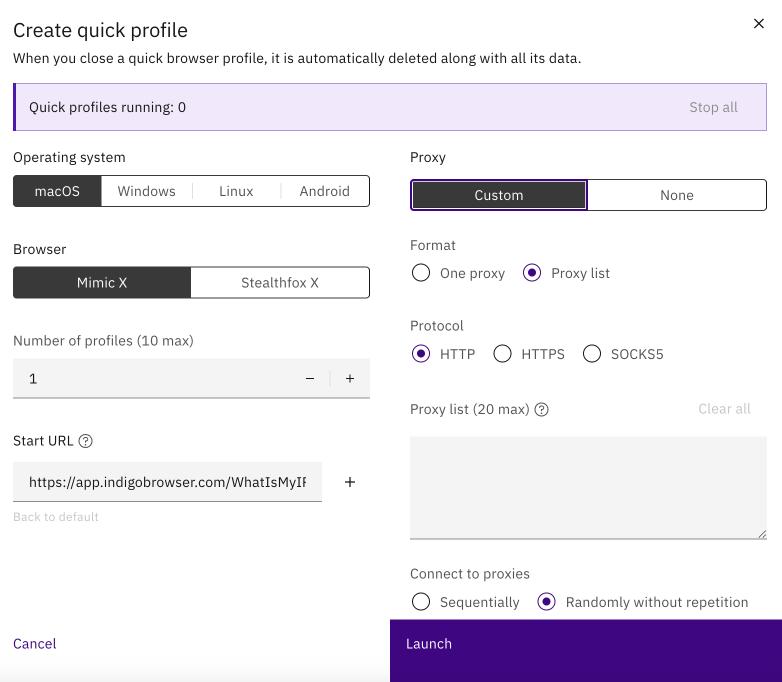
- Click "Quick profile" in the main app window
- Select an operating system that matches your original OS (macOS, Windows, Linux)
- Choose your browser profile type:
- Mimic: Built on Chrome
- Stealthfox: Built on Firefox
- Specify the number of profiles to launch (maximum 10)
- Configure the start page:
- Set your own start URL
- Add additional links to open at launch
Proxy Configuration
Choose between Indigo's built-in proxy service or your custom proxies.
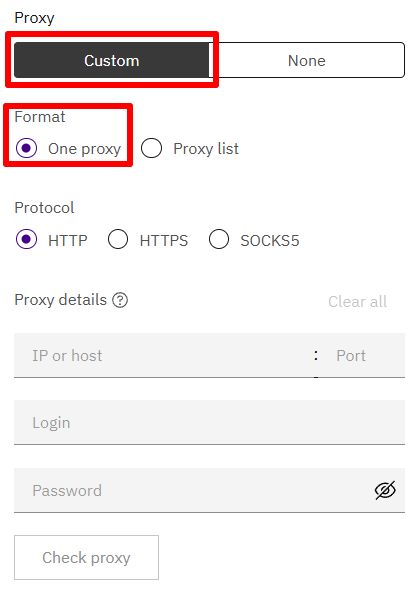
- Single Custom Proxy
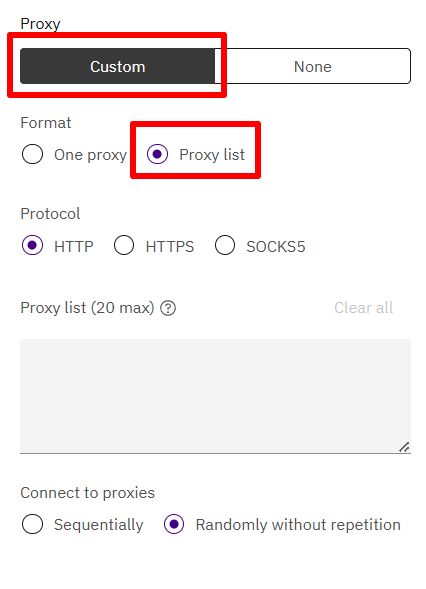
- Proxy List
Single Proxy Configuration
- Select your protocol:
- HTTP
- HTTPS
- SOCKS5
- Enter proxy details:
- Leave "Login" and "Password" blank for IP-authenticated proxies
- Format:
IP:port:login:password(auto-populates fields)
- Verify connection:
- Click "Check proxy"
- "Proxy check passed": Connection successful
- "Proxy check failed": Learn about potential issues
- Click "Launch"
Proxy List Configuration
- Choose your protocol:
- HTTP
- HTTPS
- SOCKS5
- Add up to 20 proxies:
- Format:
IP:portorIP:port:login:password
- Format:
- Select usage pattern:
- Sequential: Top to bottom
- Random: Random order without repetition
- Click "Launch"
tip
For IP-authenticated proxies, you can quickly paste the full proxy string (IP:port:login:password) into the "IP or host" field, and other fields will be populated automatically.
note
The maximum number of proxies in a list is 20. For larger proxy lists, consider creating multiple quick profiles.