Can't Start Indigo
This article covers the main reasons why Indigo might not start and how to resolve these issues.

Time & Timezone Settings
Checking Time Settings
warning
Unsynchronized timezone settings can prevent Indigo from starting correctly.
- Windows
- macOS
- Disconnect the agent and log out
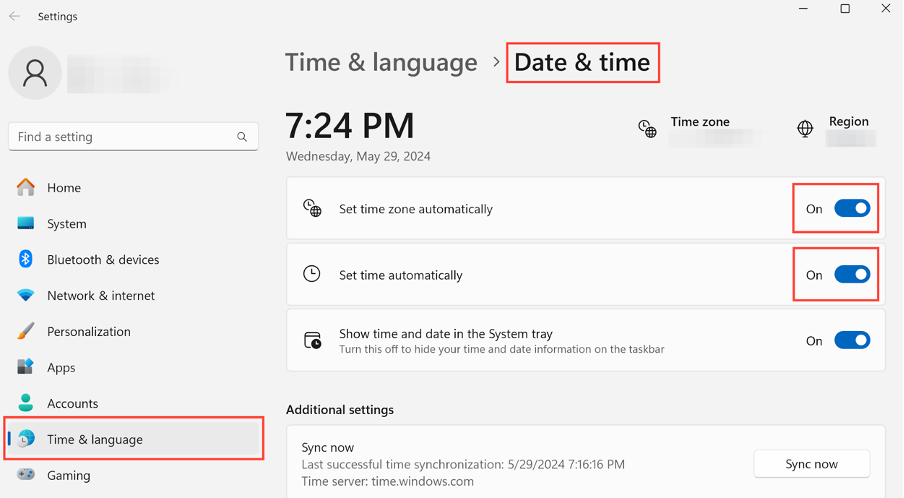
- Open Windows settings through Start → Settings
- Select Time & Language → Date & time
- Enable the options:
- "Set time zone automatically"
- "Set time automatically"
- Click the "Sync now" button
- Disconnect the agent and log out
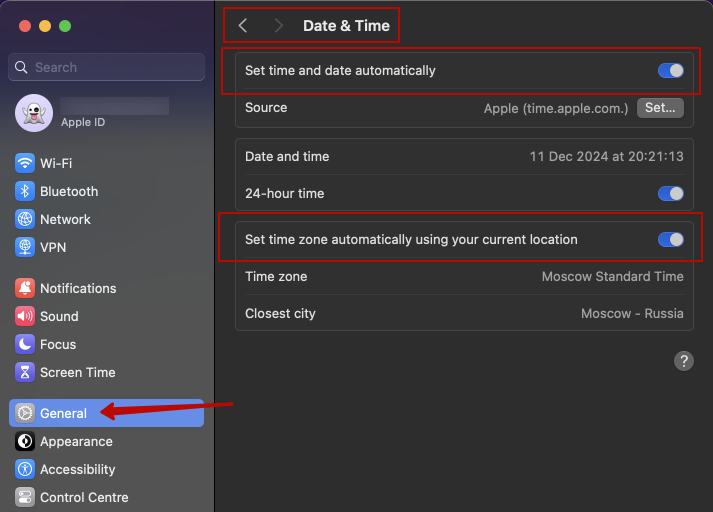
- Open System Settings → General
- Select Date & Time section
- Enable the options:
- "Set date and time automatically"
- "Set timezone automatically using current location"
Location Services
Configuring Location Services
note
If the automatic timezone option is locked, you'll need to enable location services first.
- Windows
- macOS
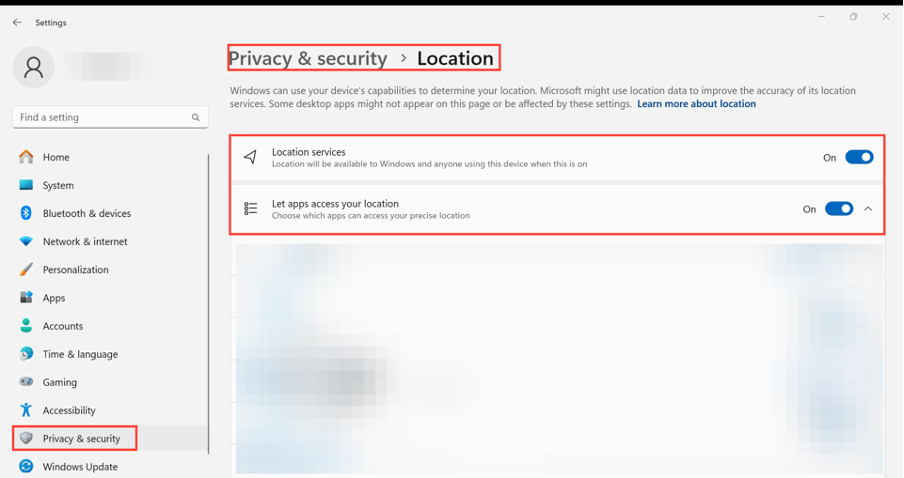
- Go to Windows settings by clicking Start → Settings
- Select Privacy & Security → Location
- Enable:
- "Location services"
- "Allow apps to access your location"
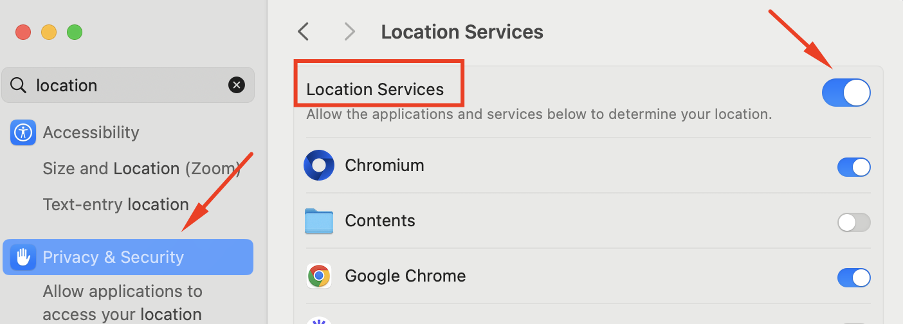
- Go to System Settings → General
- Select Privacy & Security
- Enable "Location Services"
Conflicts with Other Applications
Checking for Conflicts
The following applications may block Indigo:
- Antivirus software
- Firewall
- VPN
- Proxy applications (like Proxifier and SocksEscort)
Solution
- Option 1: Remove conflicting applications
- Option 2: Temporarily disable them
- Option 3: Add Indigo to their whitelist in settings
Internet Connection Issues
Checking Connection
Some internet service providers may block:
- Proxy providers
- Connections to Indigo
- Have low connection speeds
Try alternative connections
- Connect through a VPN
- Use a different Wi-Fi network
- Connect through mobile internet
Updating Application Components
Reinstalling Components
note
This action is safe and won't result in data loss - it only updates system components.
- Disconnect the agent
- Navigate to the Indigo folder:
- Windows
- macOS
- Linux
C:\Users\%username%\indigo/Users/%username%/indigo/home/%username%/indigo - Delete the deps folder
- Connect the agent and open any profile to start components download
Sending Logs
If issues persist, send us your logs for analysis:
-
Reproduce the issue
-
Find and archive the
logsfolder:
- Windows
- macOS
- Linux
C:\Users\%username%\indigo
/Users/%username%/indigo
/home/%username%/indigo
- Send the archive to support via @indigosupport_bot