HTTP and SOCKS proxies
Preparation
Before you begin
Make sure you have the following information from your proxy provider:
- Proxy type (HTTP, HTTPS, SOCKS5)
- Proxy IP address or hostname
- Proxy port
Authentication Methods
- Password-authenticated
- IP-authenticated
Setup Steps
- In profile settings, go to the "Proxy" section
- Select "Custom"
- Choose a protocol (HTTP, HTTPS, SOCKS5)
- Enter proxy details:
- For IP authentication: leave "Login" and "Password" fields empty
Quick Setup
You can paste proxy details in the format IP:port:login:password into the "IP or host" field, and the other fields will auto-populate.
Testing Connection
Click the "Check proxy" button to verify the setup:
✅ "Proxy check passed" Indigo successfully connected to the proxy and received IP-dependent data
❌ "Proxy check failed" Indigo couldn't connect to your proxy
Visual Guide
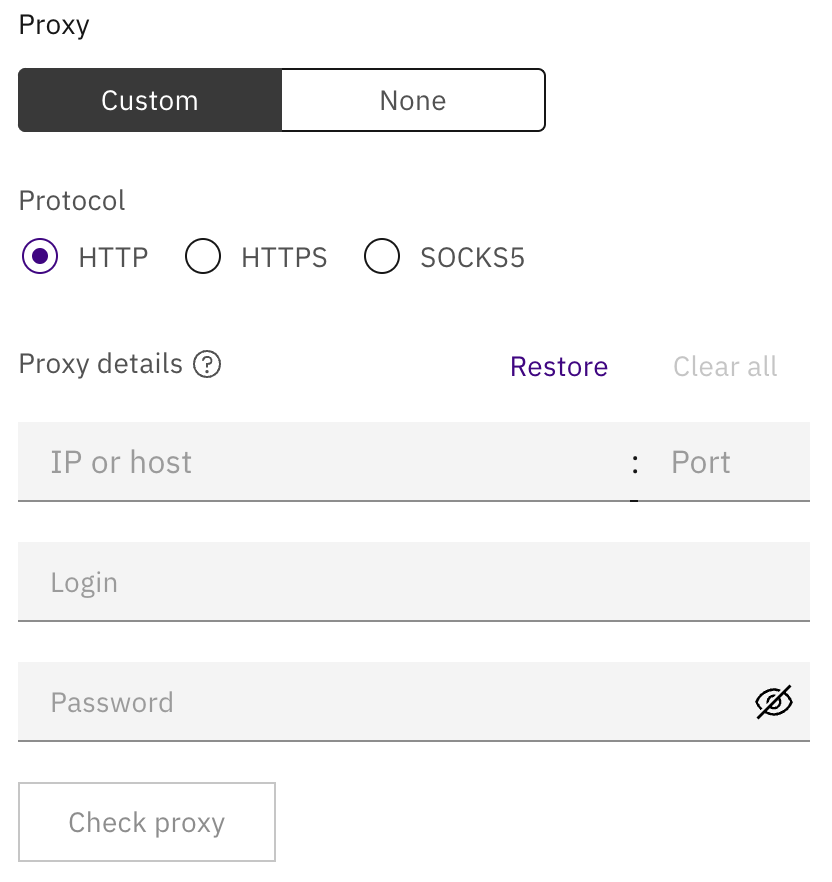
You can now create or update a profile and launch it.